
Multi Factor Authentication (MFA) adds a second check when someone logs in to StoreFeeder. As well as their password, the user enters a 6 digit code from an authenticator app on their phone, such as Google Authenticator, Microsoft Authenticator or Authy. The code changes every 30 seconds, so a stolen password alone is not enough to get into your account.
This guide explains how to turn MFA on for your account, how to make it mandatory, what your users see when they log in, and how an admin manages MFA for each user.
Turn on MFA for your account
You need to be an admin user to change these settings.
- Go to Settings > Security > Authentication Settings.
- Set Enable Multi Factor Authentication for all users to Yes.
- If you want MFA to be compulsory, pick a date and time in Mandatory From. Leave it empty if users can choose whether to set it up.
- Click Update Configuration.
With MFA turned on, every user is asked to set up an authenticator app the next time they log in:
- Before the Mandatory From date (or if no date is set), users can skip setup and log in with their password only.
- From the Mandatory From date, users must set up an authenticator app before they can log in.
The Users Without Multi Factor Authentication Configured list at the bottom of the page shows which users still need to set it up. You can also see each user's MFA status in the MFA Status column under Settings > Company > Users.
Set up MFA when you log in
The first time a user logs in after MFA is turned on, they see a QR code that is unique to their login.
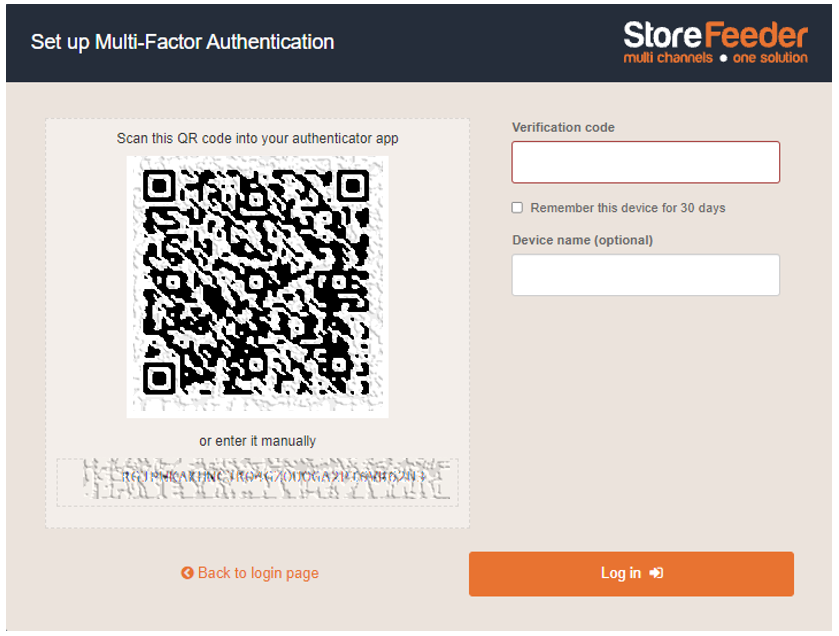
- Open your authenticator app and scan the QR code.
- Enter the 6 digit code the app shows in the Verification Code box.
- Optionally, give the device a name so you can recognise it later in your user profile.
- Tick Remember this device for 30 days if you don't want to enter a code every time you log in from this computer.
- Submit the code to finish logging in.
Next time you're asked for a code, open your authenticator app and enter the current code for StoreFeeder.

Manage MFA for a user
Admins can manage MFA for each user from Settings > Company > Users. Select the user, then use the Security section.
| Option | What it does |
|---|---|
| Opt-in to Multi Factor Authentication | Turns MFA on for just this user. Only shown when MFA is not turned on for the whole account. |
| Reset This User's Multi Factor Authentication | Click Reset to help a user who is locked out, for example after losing their phone. All their trusted devices and authenticator app links are removed, and they set up MFA again at their next login. Only shown once the user has set up MFA. |
| Trusted devices | The computers where the user ticked Remember this device for 30 days, with the date each one is trusted until. Click Delete to remove a device you no longer trust, such as a lost laptop. |
Let a user log in without MFA
Some users, such as a shared warehouse login, may need to log in without a code even when MFA is mandatory. Go to Settings > Company > Users, select the user, and under General Permissions set Can this user ignore multi factor authentication? to Yes.
Comments
0 comments
Article is closed for comments.